


There’s no denying that setting up WordPress hosting can be intimidating for beginners. However, with the right guidance, this process can be straightforward and even enjoyable. In this guide, we will walk you through five necessary steps to help you set up your WordPress hosting successfully. Whether you’re starting a blog, an online store, or a business website, these steps will lay a solid foundation for your online presence. For more in-depth tips and tricks on creating a WordPress website, check out our How to Make a WordPress Website in 2024 (Ultimate Guide).
Key Takeaways:
- Choose a Reliable Web Hosting Provider: Select a hosting provider that offers excellent uptime, security features, and customer support.
- Install WordPress with One-Click Installation: Opt for a hosting provider that allows you to easily install WordPress with just a few clicks through their control panel.
- Customize Your WordPress Site: Take advantage of WordPress themes and plugins to personalize your website and enhance its functionality to meet your needs.
Types of WordPress Hosting
While setting up WordPress hosting, it’s important to understand the various types available to choose the best option for your needs. There are four main types of WordPress hosting: Shared Hosting, VPS (Virtual Private Server) Hosting, Managed WordPress Hosting, and Dedicated Server Hosting. Each type offers different levels of control, performance, and security to cater to various website requirements.
| Shared Hosting | VPS (Virtual Private Server) Hosting |
| Managed WordPress Hosting | Dedicated Server Hosting |
Shared Hosting
Types of hosting that involves sharing a server with other websites. It is the most affordable option but may result in slower performance due to sharing resources with other sites.
VPS (Virtual Private Server) Hosting
Hosting that offers a virtual server environment dedicated to your website. It provides more control and better performance compared to shared hosting, as resources are not shared with other sites.
A VPS is a good choice for websites that require more customization and resources but are not ready for a dedicated server.
Managed WordPress Hosting
Assuming all technical aspects of hosting are managed by the provider. This type of hosting is ideal for users who want a hassle-free experience, with the provider taking care of security, updates, backups, and performance optimization.
WordPress hosting is beneficial for those who want to focus on creating and managing content rather than dealing with technical aspects of hosting.
Dedicated Server Hosting
Server hosting that provides a physical server dedicated solely to your website. It offers the highest level of control, performance, and security, making it ideal for large websites with high traffic volumes.
Understanding the various types of WordPress hosting is crucial to make an informed decision based on your website’s needs.
Factors to Consider When Choosing WordPress Hosting
Not all WordPress hosting providers are created equal. When choosing a hosting service for your WordPress website, there are several key factors to consider to ensure optimal performance, reliability, and support.
Speed and Performance
For optimal user experience and search engine ranking, speed and performance are crucial factors to consider when choosing a WordPress hosting provider. A fast-loading website can improve user engagement and conversions, so look for hosting providers that offer high-speed servers and optimized performance.
Uptime and Reliability
Consider the uptime and reliability of a hosting provider before making your decision. With a reliable hosting service, you can ensure that your website is accessible to visitors at all times, minimizing downtime and potential loss of traffic and revenue.
With a reliable hosting provider, you can also expect regular backups, security measures, and technical support to help address any issues that may arise.
Customer Support and Service
With customer support and service, you want a hosting provider that offers 24/7 support via multiple channels such as live chat, email, and phone. It’s important to have a responsive support team that can assist you with any technical issues or questions you may have.
It’s also beneficial to look for hosting providers that offer resources such as tutorials, knowledge bases, and forums to help you troubleshoot common problems and optimize your WordPress website.
Pricing and Budget Considerations
Even though pricing is a consideration, it should not be the sole deciding factor when choosing a WordPress hosting provider. Consider your budget and the value you will receive in terms of performance, support, and features. Another important factor to consider is scalability – ensure that your chosen hosting provider can accommodate the growth of your website without compromising performance or reliability.

To Step-by-Step Guide to Setting Up WordPress Hosting
Step 1: Choosing Your WordPress Hosting Provider
Any beginner looking to set up WordPress hosting needs to start by selecting a reliable hosting provider. Factors to consider include speed, uptime, customer support, and scalability for future growth.
Step 2: Purchasing a Hosting Plan and Domain Name
Setting up WordPress hosting involves purchasing a hosting plan that meets your website’s needs. It is important to choose a plan that offers enough storage, bandwidth, and features to support your website. Additionally, you will need to register a domain name that reflects your brand identity.
It is crucial to consider the scalability of your hosting plan as your website grows. Ensure that the plan you choose can accommodate increased traffic and resource demands to prevent any performance issues.
Step 3: Installing WordPress on Your Hosting Account
Installing WordPress on your hosting account is a straightforward process using one-click installation tools provided by most hosting providers. This step sets up the foundation for your website’s content management system.
To make the process seamless, follow the on-screen instructions provided by your hosting provider. Once WordPress is installed, you can log in to the admin dashboard and start customizing your site.
Step 4: Selecting and Customizing Your WordPress Theme
Account for your website’s visual appeal by selecting a WordPress theme that aligns with your brand and content. Customizing the theme to suit your preferences is crucial for creating a unique and engaging user experience.
Customizing the theme involves modifying colors, fonts, layouts, and adding branding elements. Take advantage of theme customization options to make your website stand out and resonate with your target audience.
Step 5: Installing Essential Plugins and Security Measures
Choosing the right plugins is crucial for enhancing the functionality and security of your WordPress website. Essential plugins include those for SEO, caching, backups, and security, such as firewall and malware scanners.
Understanding the importance of security measures is paramount to safeguard your website from cyber threats. Implementing strong security practices and regularly updating plugins and themes can help prevent hacking attempts and data breaches.
Tips for Maintaining WordPress Hosting
Now that you have set up your WordPress hosting, it is necessary to maintain it properly to ensure optimal performance and security. Here are some tips to help you keep your hosting in top shape:
Regular Updates and Backups
While setting up WordPress hosting is crucial, it’s equally important to regularly update your WordPress platform, themes, and plugins. These updates often include security patches and bug fixes that help protect your site from vulnerabilities. Additionally, regular backups of your site’s data are necessary to ensure you can restore your site in case of any issues.
Enhancing Security Features
Even with regular updates, it’s necessary to enhance the security features of your WordPress hosting. This includes using security plugins, implementing strong passwords, and enabling two-factor authentication. Regular security audits can also help identify and address any potential security threats to your site.
Monitoring Performance and Scalability
The performance and scalability of your WordPress hosting are crucial for providing a seamless user experience. Regular monitoring of your site’s performance metrics can help identify any bottlenecks or issues that may impact loading speed or user experience. Scalability features such as CDNs and caching can also help improve site performance during high traffic periods.
Leveraging SEO and Optimization Tools
To maximize the visibility and reach of your WordPress site, it’s important to leverage SEO tools and optimization techniques. Some necessary tools include Google Analytics for tracking site performance, Yoast SEO for optimizing your content, and page speed insights for improving loading times. With these tools, you can enhance your site’s SEO and user experience effectively.
Pros and Cons of Different WordPress Hosting Options
Pros of Shared Hosting
| Pros | Cons |
|---|---|
| Affordable | Limited Resources |
| Easy to Use | Performance Dependence on Other Sites |
| Quick Setup | Security Vulnerabilities |
Different WordPress hosting options come with their own set of advantages and disadvantages. Shared hosting, for example, is a cost-effective solution for beginners looking to launch their website without breaking the bank. It’s user-friendly and can be set up quickly, making it an attractive option for those new to website hosting.
Cons of Shared Hosting
| Pros | Cons |
|---|---|
| Low Cost | Shared Resources |
| User-Friendly | Performance Issues |
With shared hosting, one of the main drawbacks is the sharing of server resources with other websites. This can lead to performance issues if other sites on the same server experience high traffic volumes. Additionally, security vulnerabilities are a concern as a compromise in one site can potentially affect all sites on the server.
Pros of Managed WordPress Hosting
With managed WordPress hosting, users can benefit from expert support, automatic updates, and enhanced security measures. This type of hosting is ideal for those who want to focus on their content and leave the technical aspects of website management to professionals.
Cons of Managed WordPress Hosting
Understanding the drawbacks of managed WordPress hosting is crucial before making a decision. While managed hosting offers convenience and peace of mind, it can come at a higher price point compared to other hosting options. Users may also have limited control over certain aspects of their website compared to other hosting types.
Final Words
From above steps, it is evident that setting up WordPress hosting can be a straightforward process if done correctly. By following these five necessary steps, you can ensure that your website is up and running smoothly in no time. Remember the importance of selecting the right hosting provider, installing WordPress, configuring settings, optimizing performance, and securing your site. With these fundamentals in place, you are well on your way to creating a successful online presence with WordPress. Stay diligent in managing your hosting environment, and your website will thrive for years to come.
FAQ
Q: What is WordPress Hosting?
A: WordPress Hosting is a specialized hosting service optimized for WordPress websites. It is designed to enhance the performance, security, and speed of WordPress sites.
Q: How is WordPress Hosting different from regular web hosting?
A: WordPress Hosting is specifically tailored to meet the unique requirements of WordPress websites. It often includes features like one-click WordPress installation, automatic updates, and WordPress-specific support.
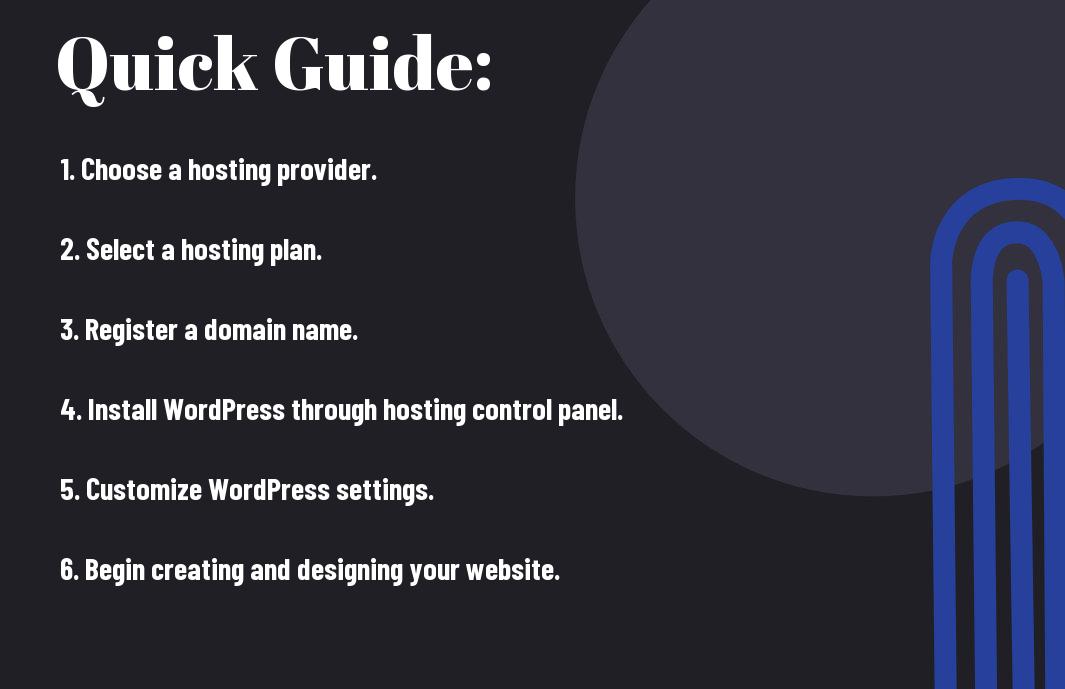
Q: What are the 5 steps to setting up WordPress Hosting for beginners?
A:
1. Choose a WordPress Hosting Provider
2. Select a Hosting Plan
3. Register a Domain Name
4. Install WordPress
5. Customize Your Website Design and Features
Leave a Reply