



It’s crucial to maximize the potential of your WordPress hosting for a seamless website performance. Implementing these important steps will not only enhance your site’s speed and security but also provide a better user experience. From fine-tuning your server settings to choosing the right plugins, each step plays a vital role in boosting your WordPress hosting experience to the next level. Let’s examine into the top 10 strategies that will optimize your WordPress hosting journey.
Key Takeaways:
- Choose the Right Hosting Plan: Select a hosting plan that meets the specific needs of your WordPress website, such as adequate storage, bandwidth, and performance capabilities.
- Optimize for Speed and Performance: Implement caching, use a content delivery network (CDN), and optimize images to improve your WordPress site’s loading speed and overall performance.
- Regularly Monitor and Maintain Your Hosting Environment: Keep your WordPress core, themes, and plugins up to date, regularly monitor site performance, and implement security measures to ensure your hosting experience is optimized for success.
Choose Reliable Hosting
Research host providers
While choosing a reliable hosting provider, it is crucial to conduct thorough research. Any host you consider should have a solid reputation for uptime, speed, and customer support. Look for reviews from other users and assess the provider’s track record to ensure they can meet your website’s needs.
Define hosting needs
When identifying a hosting plan, it’s important to If clearly define your hosting requirements. Consider factors such as website traffic, storage needs, security features, and scalability. A hosting plan that offers features such as automatic backups, SSL certificates, and CDN integration can significantly enhance the performance and security of your WordPress site.

Optimize WordPress Settings
Update WordPress regularly
There’s no denying the importance of keeping your WordPress site up to date. Regular updates not only provide you with the latest features and improvements but also help patch security vulnerabilities that could leave your site open to attacks. Make sure to update your WordPress core, themes, and plugins regularly to ensure your site runs smoothly and securely.
Clean-up database frequently
There’s a common oversight among WordPress users when it comes to database management. Regularly cleaning up your database can help improve your site’s performance by reducing the clutter of unnecessary data. Optimize your database by removing spam comments, post revisions, and trashed items. Consider using plugins like WP-Optimize to automate this process and keep your database running efficiently.
Use Caching Solutions
Install caching plugin
On WordPress, the most efficient way to improve your site’s speed is by installing a caching plugin. Many popular options are available, such as WP Super Cache, W3 Total Cache, and WP Rocket. These plugins create static versions of your site’s pages, reducing the need to generate them each time a visitor loads a page.
Configure cache settings
On installing a caching plugin, it is crucial to configure the cache settings to maximize its effectiveness. These settings control how the cache behaves, such as when to clear the cache, what content to exclude, and how long to store cached files. By customizing these settings, you can ensure your site runs smoothly and loads quickly for visitors.
Plus, tweaking the cache settings to match your site’s specific needs can dramatically improve your site’s performance and user experience. By setting longer cache expiration times for static assets and frequently accessed pages, you can significantly reduce loading times and server load.
Optimize Themes and Plugins
Select lightweight themes
Now more than ever, it is crucial to choose lightweight themes for your WordPress website. These themes are designed to be fast-loading and have minimal design elements, which can greatly improve your site’s performance. Look for themes that are optimized for speed and have a clean code base to ensure a smooth user experience.
Evaluate plugin use
Pertaining to plugin selection, quality trumps quantity. Only install plugins that are important to your website’s functionality and be sure to regularly evaluate their performance. Plugins can significantly impact your site’s speed and security, so it’s important to keep them to a minimum. Remove any unnecessary plugins and opt for reputable ones that are regularly updated by developers.
Enable Content Delivery Network
Choose suitable CDN
Your WordPress hosting experience can be significantly enhanced by enabling a Content Delivery Network (CDN). While selecting a CDN, consider factors like server locations, scalability, and integration with WordPress. Choosing a suitable CDN that aligns with your website’s requirements can improve load times and overall performance.
Integrate CDN properly
Delivery Your CDN must be integrated properly with your WordPress site to maximize its benefits. Integrating CDN involves configuring settings, ensuring proper caching, and optimizing content delivery. Incorrect integration can lead to performance issues and potential security vulnerabilities.
The proper integration of a CDN with WordPress can boost website speed, reduce server load, and enhance user experience. It is crucial to follow best practices and guidelines provided by both your CDN provider and WordPress platform to ensure seamless integration and optimal performance. Regular monitoring and maintenance of the CDN integration are vital to ensure consistent performance benefits.
Implement Security Measures
Install Security Plugins
To optimize your WordPress hosting experience, you’ll need to install security plugins. These plugins help to protect your website from various online threats such as malware, brute force attacks, and hackers. Some popular security plugins include Wordfence, Sucuri Security, and iThemes Security. By regularly updating and configuring these plugins, you can enhance the security of your WordPress site.
Set Strong Passwords
To set strong passwords, on your WordPress site, you’ll need to create complex passwords that are not easily guessable. Avoid using common phrases or personal information that can be easily obtained. A strong password typically includes a mix of uppercase and lowercase letters, numbers, and special characters. It’s important to regularly change your passwords and avoid using the same password for multiple accounts to enhance the security of your WordPress site.
Conduct Regular Backups
After implementing all the imperative tactics to improve your WordPress hosting experience, it’s crucial to focus on backing up your website regularly. In case of any unexpected issues or data loss, having backups in place can save you a lot of time and effort. To learn more about enhancing your WordPress site, check out How to Improve SEO on WordPress: Essential Tactics.
Schedule automatic backups
Any effective backup strategy involves scheduling automatic backups. By setting up regular intervals for backups, you ensure that your website’s data is consistently protected without the need for manual intervention. This way, you can focus on running your WordPress site without worrying about potential data loss.
Store backups offsite
You’ll want to store your backups offsite to protect against any potential server failures or cybersecurity threats. Plus, by storing your backups offsite, you ensure that your data is safe and easily accessible in case of an emergency. It’s important to have a secure and reliable offsite storage solution to maintain the integrity of your backups.
Optimize Images and Media
Compress Image Files
On the journey to optimizing your WordPress hosting experience, one crucial step is to compress image files. Uncompressed images can slow down your website by taking up valuable server space and increasing loading times. By utilizing image compression tools, you can reduce the file size of images without compromising on quality. This not only enhances the performance of your website but also improves user experience by ensuring faster load times.
Use Media Queries
While optimizing your WordPress hosting, consider incorporating media queries into your website’s design. Media queries allow your site to adapt to different screen sizes and resolutions, ensuring a seamless user experience across various devices. By using responsive design techniques, you can create a dynamic and visually appealing website that caters to a diverse audience. Implementing media queries can significantly improve the overall performance and accessibility of your WordPress site.
It is vital to regularly analyze and optimize your images and media files to enhance your WordPress hosting experience. By compressing image files and utilizing media queries, you can dramatically improve your website’s loading speed, performance, and overall user experience. Taking the time to optimize images and media on your WordPress site will not only benefit your visitors but also boost your search engine rankings and increase your site’s visibility online.
Monitor Website Performance
Once again, monitoring your website’s performance is crucial to ensure optimal user experience and overall success of your WordPress hosting. By keeping track of how your website is performing, you can identify any issues that may be affecting its speed, reliability, and overall performance.
Implement analytics tools
The implementation of analytics tools such as Google Analytics or WordPress plugins like MonsterInsights can provide valuable insights into how your website is performing. These tools allow you to track important metrics such as page load times, bounce rates, and user engagement. By analyzing this data, you can make informed decisions to improve your website’s performance and user experience.
Analyze performance regularly
Even with analytics tools in place, it is crucial to analyze your website’s performance regularly to identify any trends or issues that may be impacting its performance. By conducting regular performance audits, you can proactively address any issues and ensure your website continues to run smoothly.
Regularly analyzing your website’s performance can help you optimize its speed, improve user experience, and ultimately increase your website’s success. By staying informed about how your website is performing, you can make necessary adjustments to keep it running at its best.
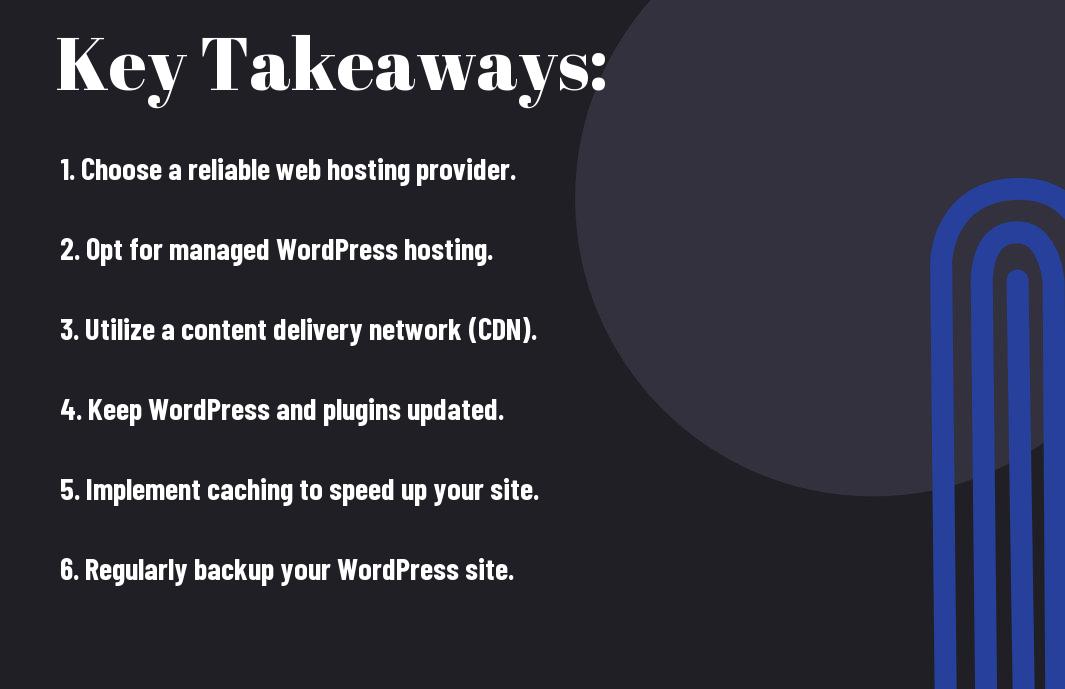
To wrap up
So, following these 10 crucial steps to optimizing your WordPress hosting experience can significantly enhance your website’s performance, speed, and reliability. By implementing these strategies, you can ensure that your site operates smoothly and efficiently, providing a better user experience for your visitors. For more in-depth tips on how to optimize your WordPress site for speed and performance, check out our blog post on 10 Pro Tips: How To Optimize Your WordPress Site For ….
FAQ
Q: Why is optimizing WordPress hosting important?
A: Optimizing WordPress hosting is crucial for ensuring fast loading times, better security, improved SEO performance, and overall user experience. By optimizing your hosting, you can enhance the performance of your website and provide a better online experience for your visitors.
Q: What are the important steps to optimizing WordPress hosting?
A: The 10 important steps to optimizing your WordPress hosting experience include:
1. Choosing a reliable hosting provider
2. Selecting the right hosting plan
3. Implementing caching mechanisms
4. Keeping WordPress and plugins up to date
5. Optimizing images and media files
6. Using a content delivery network (CDN)
7. Enabling Gzip compression
8. Minifying CSS and JavaScript files
9. Cleaning up your WordPress database
10. Regularly monitoring and optimizing performance
Q: How can I monitor the performance of my WordPress website after optimizing hosting?
A: You can monitor the performance of your WordPress website using tools like Google PageSpeed Insights, GTmetrix, Pingdom, and WebPage Test. These tools can help you analyze various performance metrics, identify areas for improvement, and track the impact of your optimization efforts on your website’s speed and user experience.
Leave a Reply