



This step-by-step guide will show you exactly how to install WordPress on Bluehost effortlessly. Bluehost is a popular hosting platform known for its user-friendly interface and reliable service. Whether you’re a beginner or an experienced user, setting up WordPress on Bluehost is quick and straightforward. By following these 5 easy steps, you can have your WordPress site up and running in no time. Stay tuned for a hassle-free installation process!
Key Takeaways:
- Bluehost is a popular web hosting platform that offers easy WordPress installation.
- Setting up a WordPress site on Bluehost can be done in just 5 easy steps.
- Bluehost’s one-click WordPress installation simplifies the process for beginners.
- Choosing a domain name and hosting plan on Bluehost is the first step to installing WordPress.
- Logging into your Bluehost account and accessing the ‘Website’ section will lead you to the WordPress installer.
- Completing the WordPress installation involves setting up your site’s title, username, and password.
- Bluehost provides customer support to help with any issues or questions during the WordPress installation process.
Preparing for Installation
Factors to Consider Before Installation
Now, before you dive in and start installing WordPress on Bluehost, there are factors to consider that will ensure a smooth setup process. Make sure to check the compatibility of your theme and plugins with the latest version of WordPress. Check if your web hosting plan meets the minimum requirements for running WordPress smoothly and efficiently. Also, consider the traffic volume your website is expected to receive to choose the right hosting package.
- Theme and plugins compatibility
- Minimum requirements
- Traffic volume
Assume that by considering these factors beforehand, you will avoid any potential issues during and after the installation process.
Tips for Choosing a Domain Name
On selecting a domain name before setting up WordPress, it is crucial to consider keywords that reflect your website’s purpose clearly. Choose a unique and memorable domain name that is easy to spell and pronounce. The domain name should be relevant to your niche to attract the right audience.
- Keywords relevance
- Memorability
- Relevance to niche
The domain name plays a significant role in your website’s branding and online visibility. Make sure to choose wisely to make a lasting impression on your visitors.
How to Install WordPress on Bluehost
Step 1: Signing Up for Bluehost
Clearly, the first step in installing WordPress on Bluehost is to sign up for a Bluehost account. Head to the Bluehost website and choose a hosting plan that suits your needs. Enter your domain name or register a new one, fill in your account information, and select any additional features you may need. Once you’ve completed the signup process, you’re ready to move on to the next step.
Step 2: Accessing the Control Panel
Install Now, to access the control panel, log in to your Bluehost account using the credentials you created during the signup process. Once logged in, navigate to the control panel, also known as the cPanel. Here, you’ll find a range of tools and features to help you manage your hosting account and install WordPress easily.
With cPanel, you can access the One-Click Install feature, which allows you to install WordPress with just a few clicks. This user-friendly interface streamlines the installation process, making it quick and efficient. Keep your login credentials safe to prevent unauthorized access to your account.
Configuring WordPress
Step 3: Installing WordPress
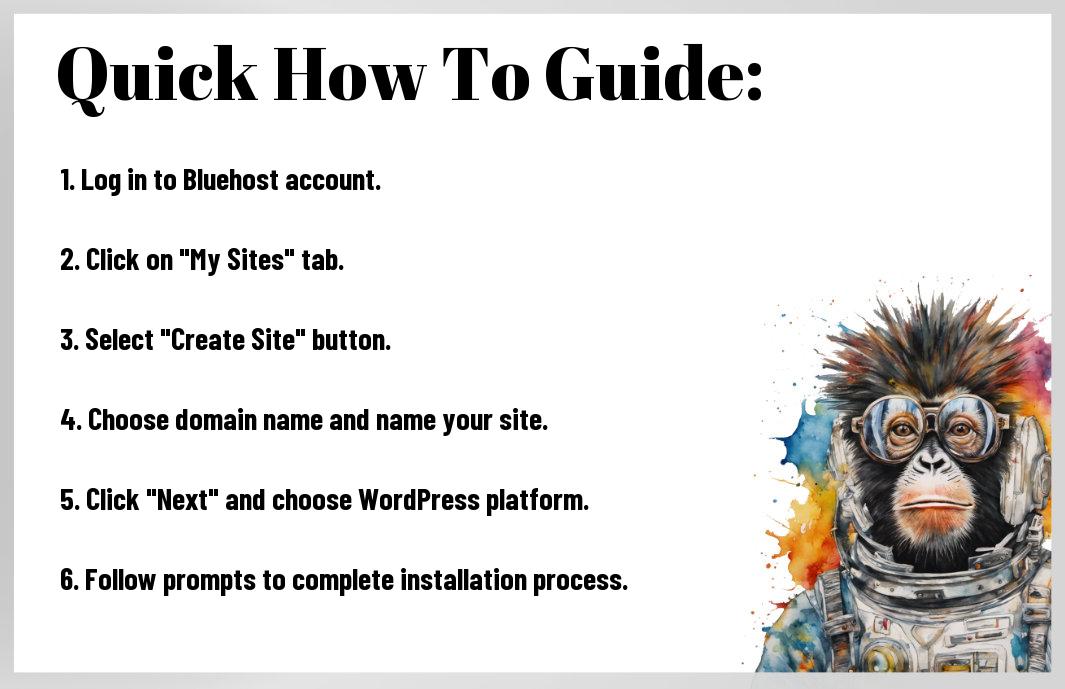
For the third step in configuring your WordPress website on Bluehost, you will need to install the WordPress platform. Bluehost offers a 1-click WordPress installation feature, making the process quick and hassle-free. Simply log in to your Bluehost account, navigate to the control panel, and click on the WordPress icon. Follow the on-screen instructions to complete the installation, and you will have WordPress up and running on your Bluehost hosting in no time.
Step 4: Selecting a WordPress Theme
An vital part of configuring your WordPress website is selecting a suitable theme to define its appearance and layout. When choosing a WordPress theme, consider your website’s purpose, target audience, and branding. You can browse through a wide variety of free and premium themes available on WordPress theme directories or third-party marketplaces. Select a theme that is responsive, customizable, and aligns with your brand identity to create a visually appealing and user-friendly website.

Customizing Your WordPress Site
Step 5: Customizing Settings and Plugins
Despite installing WordPress on Bluehost and setting up your website, the customization process is crucial to make your site stand out. In this step, you will examine adjusting settings and selecting plugins to enhance functionality.
Tips for Optimizing Your WordPress Site
Clearly, optimizing your WordPress site is crucial for performance and user experience. From selecting the right theme to utilizing crucial plugins, optimization plays a vital role in the success of your website.
- Choose a responsive theme: Selecting a responsive theme ensures your site looks great on all devices.
- Optimize images: Compress images to improve site speed and performance.
- Utilize SEO plugins: Plugins like Yoast SEO can help optimize your content for search engines.
Tips for optimizing your WordPress site can significantly impact its overall success. For instance, ensuring your theme is responsive and optimizing images can positively impact user experience and SEO rankings. Recognizing the importance of utilizing SEO plugins can further boost your site’s visibility online.
Summing up
The process of installing WordPress on Bluehost in 5 easy steps is straightforward and beginner-friendly. By following the steps outlined in this guide, you can have your WordPress website up and running in no time. Remember to choose a strong password, keep your WordPress site updated, and regularly back up your data to ensure its security and smooth operation. With WordPress powering your website and Bluehost providing reliable hosting services, you are well on your way to establishing a professional online presence. Happy website building!
FAQ
Q: What is Bluehost?
A: Bluehost is a popular web hosting service that offers hosting solutions for websites and blogs.
Q: Why should I choose Bluehost for installing WordPress?
A: Bluehost is officially recommended by WordPress.org and offers one-click WordPress installation, excellent customer support, and reliable hosting services.
Q: What are the benefits of installing WordPress on Bluehost?
A: Installing WordPress on Bluehost gives you access to a user-friendly interface, customizable themes, plugins for added functionality, and regular updates for security and performance.
Q: How do I install WordPress on Bluehost in 5 easy steps?
A: You can install WordPress on Bluehost in 5 easy steps by following our detailed guide below.
Q: Step 1: Create a Bluehost account
A: To install WordPress on Bluehost, you first need to create a Bluehost account by visiting their website and selecting a hosting plan that meets your needs.
Q: Step 2: Choose a domain name
A: Once you have created your Bluehost account, you will need to choose a domain name for your website. Bluehost offers free domain registration for the first year with their hosting plans.
Q: Step 3: Install WordPress with one-click installation
A: After setting up your domain name, log in to your Bluehost account, and locate the “One-Click Install” button in the control panel. Click on it and then select WordPress from the list of available platforms to install.
Leave a Reply