


This comprehensive guide will empower you to master the powerful Elementor plugin for WordPress, allowing you to effortlessly create stunning websites through drag-and-drop design. Say goodbye to coding headaches and hello to a user-friendly interface that grants you creative control over your site’s layout and functionality. By following the steps outlined in this article, you’ll learn how to harness the full potential of Elementor to elevate your web design skills and enhance your online presence. Get ready to revolutionize your website building experience with Elementor.
Key Takeaways:
- Elementor: Elementor is a powerful drag-and-drop page builder plugin for WordPress that allows users to easily design and customize websites without any coding knowledge.
- Responsive Design: With Elementor, you can create responsive designs that look great on all devices, including desktops, tablets, and smartphones, ensuring a seamless user experience.
- Advanced Features: Elementor offers a wide range of advanced features such as templates, widgets, and integrations that help users create professional-looking websites with ease.
Understanding Elementor
Types of Widgets and Modules
Some WordPress Elementor comes with a wide variety of widgets and modules that allow you to customize your website design effortlessly. These include headline, image, text editor, button, video, divider, and more. Each widget and module serves a specific function, helping you create a visually appealing and functional website without any coding knowledge. There’s a table breakdown of the different widgets and modules available in Elementor:
| Widget/Module | Description |
| Headline | Displays a heading or title on the page |
| Image | Inserts an image onto the page |
| Text Editor | Allows you to add and format text content |
| Button | Creates a clickable button for users |
| Video | Embeds a video onto the page |
Though it’s user-friendly, understanding the purpose of each widget and module is crucial for creating a cohesive design.
Working with Templates and Pages
There’s a seamless process involved in working with templates and pages in WordPress Elementor. You can choose from a wide range of pre-designed templates or create your own from scratch. Once you’ve selected a template or started designing a new page, you can easily drag and drop widgets and modules onto the canvas, customizing the layout to your liking. Another important feature is the ability to preview your design on different devices to ensure a responsive layout that looks great on any screen size.
Step-by-Step Guide to Using Elementor
There’s no doubt that mastering Elementor can take your WordPress design skills to the next level. With its drag-and-drop interface and powerful customization options, Elementor is a go-to tool for web designers looking to create stunning websites without any coding knowledge.
Setting up Elementor on Your WordPress Site
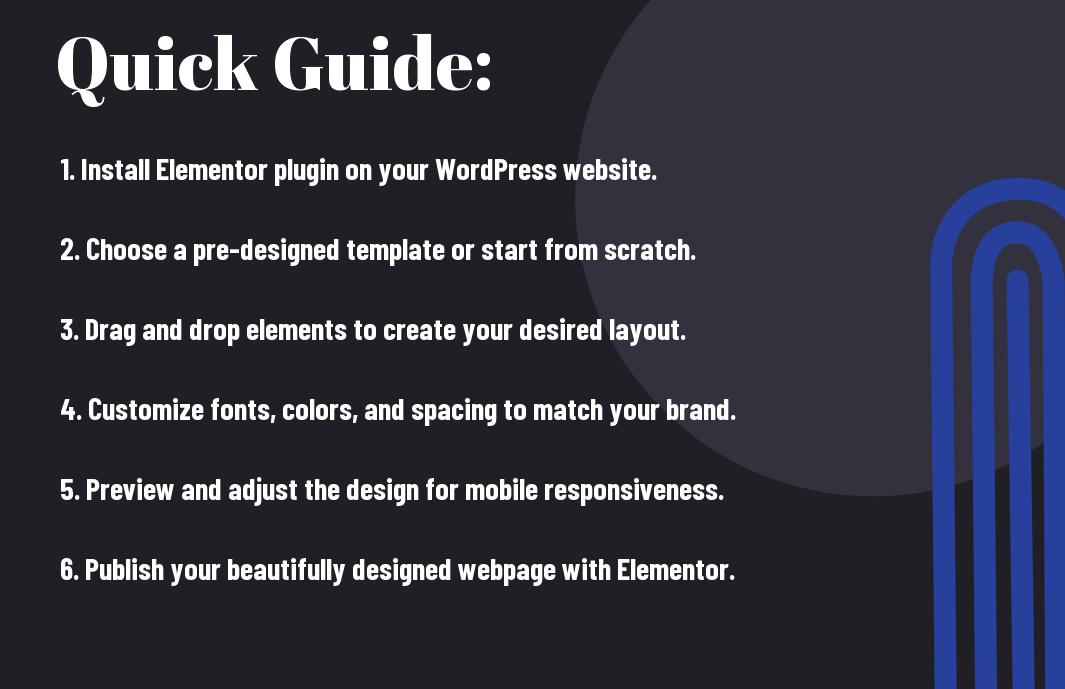
Now, to get started with Elementor on your WordPress site, you first need to install and activate the Elementor plugin. Simply head to your WordPress dashboard, navigate to the Plugins section, click on ‘Add New’, search for Elementor, and hit ‘Install Now’. Once activated, you’re ready to start building beautiful pages with Elementor.
Creating Your First Page with Elementor
Little do you know, creating your first page with Elementor is a breeze. Simply create a new page or edit an existing one in your WordPress dashboard. Click on the ‘Edit with Elementor’ button, and you’ll be greeted with Elementor’s intuitive interface where you can drag elements like text, images, buttons, and more onto your page.
Elementor allows you to customize every aspect of your page with ease. From adjusting margins and padding to changing fonts and colors, the possibilities are endless. With great power comes great responsibility, so make sure to save your work frequently and preview your page to ensure it looks perfect before publishing.
Design Tips and Best Practices
Your website’s design plays a crucial role in attracting and engaging visitors. When using Elementor to design your website, consider the following tips and best practices to create a visually appealing and functional site:
- Consistency: Maintain a consistent design across all pages for a cohesive look.
- White Space: Use ample white space to avoid a cluttered layout and improve readability.
- Color Scheme: Choose a harmonious color palette that reflects your brand and enhances user experience.
- Typography: Select fonts that are easy to read and complement your design aesthetic.
- Mobile Responsiveness: Ensure your design is responsive and looks great on all devices.
This approach will help you create a visually appealing website that effectively communicates your brand and engages visitors.
Design Factors to Consider in Elementor
Best practices for design in Elementor include considering the following factors:
- Section Layout: Organize your content into well-designed sections for better visual hierarchy.
- Widget Selection: Choose widgets that enhance user experience and support your design goals.
- Animation Effects: Use animations strategically to draw attention to important content.
- Image Optimization: Optimize images for faster loading times and a polished look.
Any design decisions should prioritize user experience and align with your website’s goals and target audience.
Pros and Cons of Using Elementor for Your Website
| Pros | Cons |
|---|---|
| Intuitive drag-and-drop interface | Limitations with complex layouts |
| Wide range of pre-designed templates | Dependency on third-party plugins |
| Extensive customization options | Potential for plugin conflicts |
| Mobile responsiveness | Learning curve for beginners |
The use of Elementor for designing your website offers numerous benefits and potential drawbacks. It is necessary to weigh these factors carefully to determine if Elementor is the right tool for your specific website needs.
Advanced Uses of Elementor
Despite its user-friendly interface and drag-and-drop functionality, Elementor offers advanced features that can take your website design to the next level. Here are some advanced uses of Elementor:
- Custom Styles and Responsive Design
- Enhancing Functionality with Elementor Add-ons and Plugins
Custom Styles and Responsive Design
Customizing styles and ensuring responsiveness is crucial for a professional-looking website. With Elementor, you can easily tweak every aspect of your design, from fonts and colors to spacing and layout. The responsive design settings allow you to adjust how your site appears on different devices, ensuring a seamless user experience across all platforms.
Enhancing Functionality with Elementor Add-ons and Plugins
Even though Elementor comes packed with features, there are times when you may need additional functionalities. This is where Elementor add-ons and plugins come in handy. These tools offer a wide range of capabilities, from advanced widgets and templates to integrations with popular tools like WooCommerce and MailChimp. By leveraging these add-ons, you can enhance the functionality of your website and create a truly unique online presence.
Elementor allows you to extend the capabilities of your website without writing a single line of code. By incorporating add-ons and plugins, you can add new features, improve performance, and streamline your design process. These tools can help you save time, increase efficiency, and elevate the overall look and feel of your website.
Summing up
With these considerations in mind, mastering WordPress Elementor can transform the way you design and create websites. By harnessing the power of drag-and-drop elements, you can easily build professional-looking websites with no coding required. This beginner’s guide provides a solid foundation for understanding how to use Elementor effectively, allowing you to take control of your website design and customization. Whether you are a novice or an experienced web developer, Elementor offers a user-friendly and intuitive platform that can enhance your design capabilities and elevate the overall quality of your websites.
FAQ
Q: What is Elementor in WordPress?
A: Elementor is a popular drag-and-drop page builder plugin for WordPress that allows users to create custom website designs without the need for coding skills.
Q: How can Elementor help beginners in WordPress design?
A: Elementor simplifies the website design process for beginners by providing an intuitive interface where they can easily add elements, customize styles, and arrange content with a simple drag-and-drop mechanism.
Q: Is Elementor suitable for all types of websites?
A: Yes, Elementor is versatile and can be used to design various types of websites, including blogs, business websites, portfolios, and e-commerce stores. Its flexibility and extensive library of design elements make it a valuable tool for different website needs.
Leave a Reply